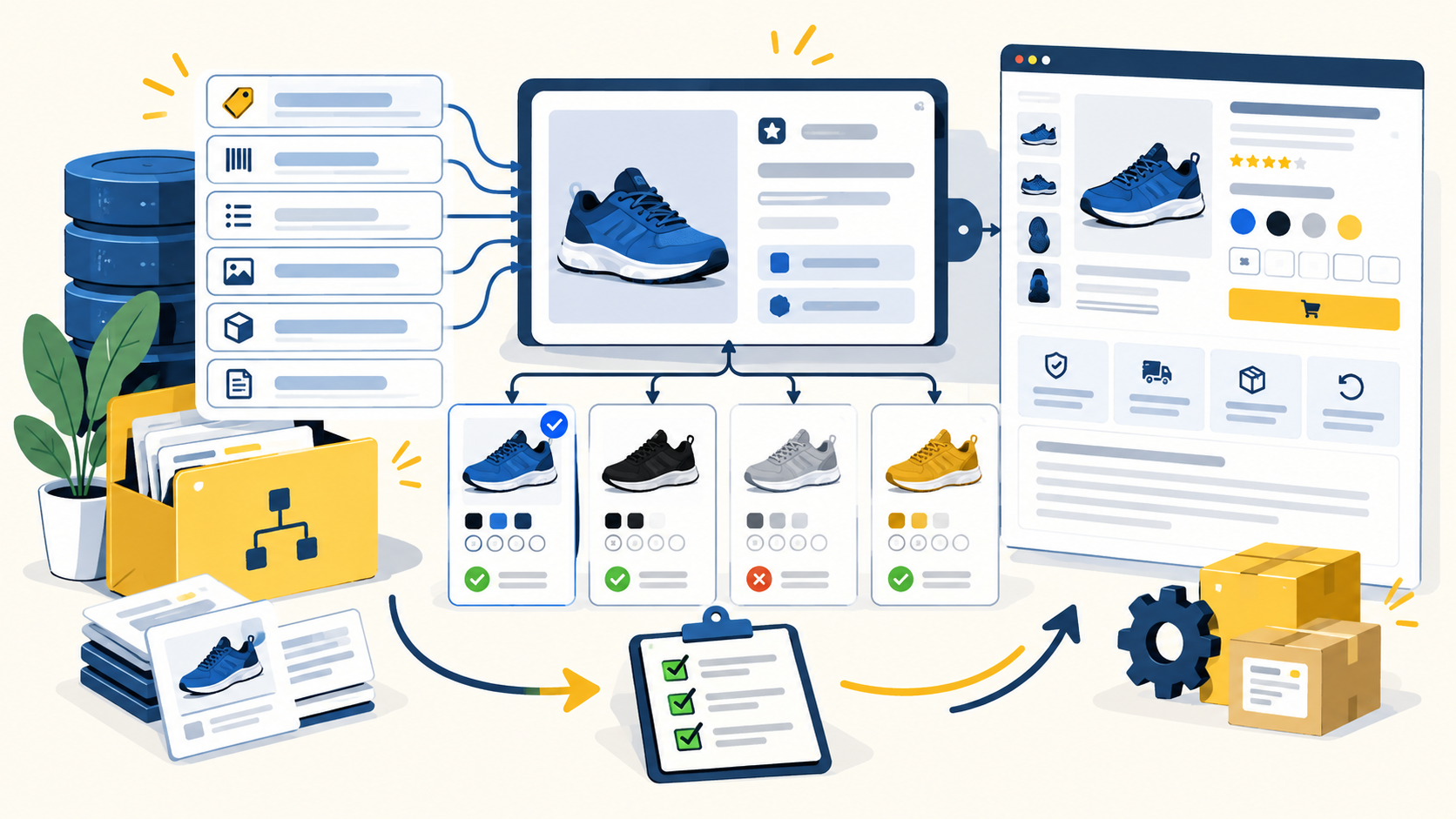
Start with the exact destination template
Do not build a bulk file from memory or from an old spreadsheet. Download the current template or schema for the destination and identify which columns are required, conditionally required, optional, or category-specific.
Amazon provides different spreadsheet templates for matching products already in the catalog, creating new product listings, updating product details, and changing price or quantity. Shopify also requires its own CSV structure and column names. The first QA question is therefore not whether the source data looks clean, but whether it matches the destination structure.
Separate create, update, and inventory actions
A file that creates new products carries different risk from a file that updates existing ones. Treat create files, content updates, price updates, inventory updates, and relationship updates as separate jobs whenever the platform supports it.
This limits the blast radius of a mistake and makes troubleshooting easier because you know which group of fields changed in each upload.
Protect stable identifiers
SKUs, GTINs, UPCs, EANs, ASINs, handles, internal IDs, and other stable keys should be reviewed before any bulk action. A wrong identifier can update the wrong item, create an unnecessary duplicate, or break the connection between systems.
Shopify specifically warns that changing option values in a product CSV can create new variant IDs, which can break dependencies that rely on those IDs. The broader lesson applies everywhere: identity fields are not ordinary editable text.
Validate parent-child and variant logic as a group
Variants should be checked as families, not row by row. Confirm that each child belongs to the correct parent, variation attributes are complete, and every buyable child remains uniquely identifiable.
For Amazon, parent-child relationships and variation themes determine how related products appear together. A structurally valid row can still produce a bad catalog experience if the family itself is wrong.
Map source values before the upload
Internal values often need translation before they fit the destination. Map categories, availability values, condition values, units, colors, sizes, fulfillment fields, and other controlled attributes before generating the final file.
Keep the mapping logic documented and separate from the original source values so the same catalog can be transformed for another marketplace later without destroying the canonical data.
Run structural and business-rule validation
Structural validation checks headers, file encoding, required columns, allowed values, URLs, number formats, and blank fields. Business-rule validation checks whether the data makes sense: duplicate identifiers, impossible dimensions, price anomalies, missing child attributes, or category assignments that contradict the product.
Both layers matter. A technically valid file can still create bad listings if the underlying product data is wrong.
Test a representative sample first
Before uploading the entire catalog, test a small set that includes simple products, variants, edge cases, and at least one record from each major category or mapping path.
Review the actual result in the destination, not just the upload confirmation. Check titles, identifiers, variation relationships, images, attributes, pricing, availability, and whether the product is truly active and discoverable.
Keep a backup and an upload log
Shopify recommends backing up product data before a CSV import, and that principle is useful across platforms. Save the pre-upload export or source file, the exact upload file, the date, the operator, and the purpose of the change.
If something goes wrong, the team should be able to identify exactly what changed and reconstruct the previous state instead of trying to remember which spreadsheet was used.
Common questions
What should I check before a bulk product upload?
Check the current destination template, stable identifiers, required fields, variant relationships, controlled values, mappings, image URLs, file format, and a representative sample before scaling the upload.
Should I upload my entire catalog at once?
Usually not for a new or heavily changed mapping. Test a small representative batch first, review the destination result, then expand once the rules are proven.
Why do bulk uploads create duplicate listings?
Common causes include incorrect product identifiers, failure to match an existing catalog item, changed stable keys, or create files being used where an update should have been used.
What is the safest way to roll back a bad upload?
Maintain a pre-upload export or backup plus the exact change file and upload log. The rollback method depends on the platform, but preserving the prior state is what makes recovery possible.
Final thoughts
Bulk product uploads save time only when the source file is controlled. A spreadsheet with hundreds or thousands of SKUs can create hundreds or thousands of errors just as quickly as it can create listings. The safest process is to work from the destination template, preserve stable identifiers, validate relationships and required fields, test a small batch, and treat the upload as a controlled data change rather than a simple file transfer.
Need help improving your business data?
DataDabble can research, clean, enrich, and maintain the records your team depends on.